guide
How to Disable Find My iPhone Before a Repair
7 min read
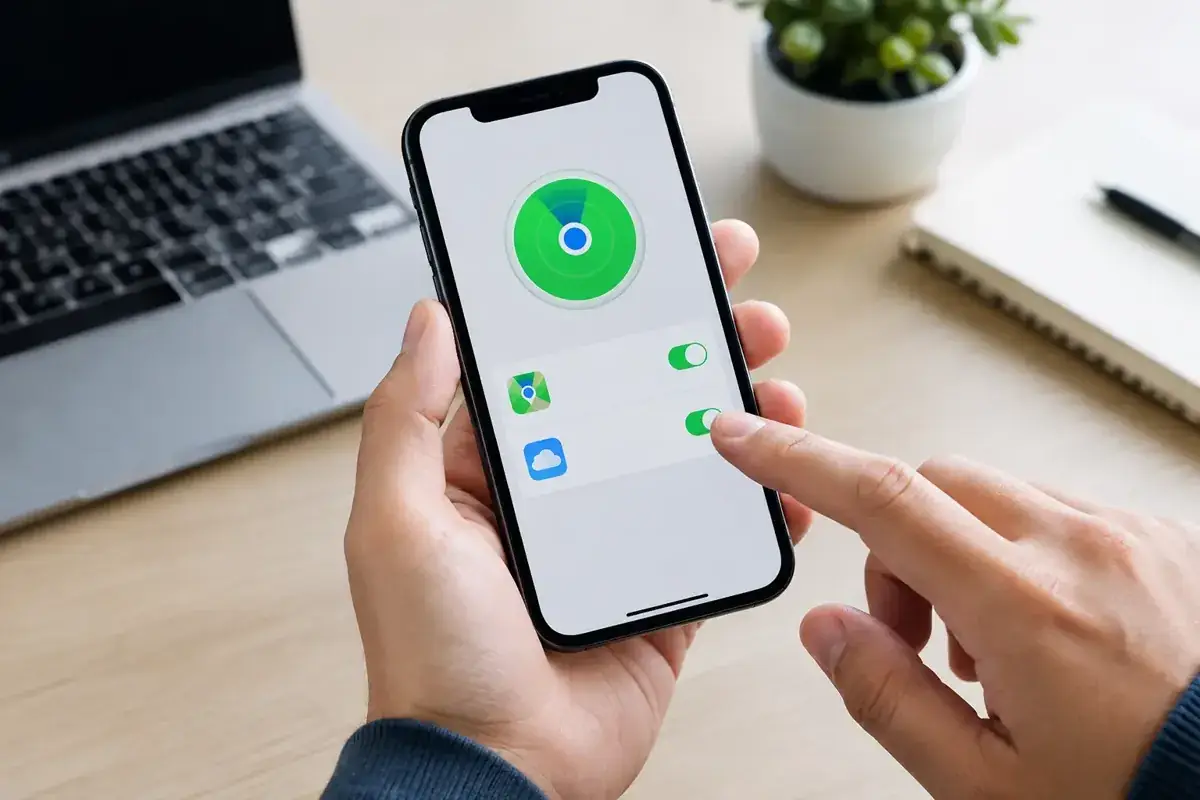
A screen repair can take minutes. Being unable to start because Find My iPhone is still active can take much longer. If you are bringing an iPhone in.
A screen repair can take minutes. Being unable to start because Find My iPhone is still active can take much longer. If you are bringing an iPhone in for a repair, selling it, or handing it to someone else, knowing how to disable Find My iPhone properly prevents Activation Lock problems and protects both you and the next person handling the device.
Find My is one of Apple’s best security features. It can show your phone’s location, let you mark it as lost and stop anyone else from setting it up without your Apple ID. That protection is exactly why it needs to be switched off by the owner before certain repairs, replacements and sales.
Why Find My iPhone must be disabled before repair
When Find My iPhone is enabled, Activation Lock is tied to your Apple ID. A repair technician cannot remove it, bypass it or responsibly complete work that requires device testing while the phone remains locked to your account. That is by design, not a repair-shop issue.
For a straightforward screen replacement, it may be possible to carry out the physical repair without accessing your personal data. However, proper post-repair testing can involve checking the display, touch response, cameras, speakers, Face ID components, charging and software behaviour. Switching off Find My before your appointment avoids delays and confirms that the phone is yours to authorise for service.
It is also essential if the device is being replaced under warranty, traded in, sold privately or passed to a family member. Leaving Find My on means the iPhone can remain Activation Locked after it has been erased. The new owner will then be stuck at setup, and you will still be connected to a device you no longer own.
How to disable Find My iPhone on the device
The quickest method is through Settings, while you have the iPhone in your hand and can sign in to your Apple Account, previously called an Apple ID.
- Open Settings.
- Tap your name at the top of the screen.
- Tap Find My.
- Tap Find My iPhone.
- Turn off Find My iPhone.
- Enter your Apple Account password when asked, then tap Turn Off.
That final password check matters. It prevents somebody who knows your passcode from casually disabling your theft protection and taking control of the phone.
On some iPhones, you may also see options for Find My network and Send Last Location. These are related location features. Turning off the main Find My iPhone switch is what removes Activation Lock. If you are selling or giving away the phone, switch off the main setting first, then erase the device properly.
Do not confuse switching off Location Services with disabling Find My. Location Services controls which apps can use your location. Find My and Activation Lock can remain active even if Location Services is off.
If Stolen Device Protection is enabled
Newer iOS versions may apply extra security when you attempt to change sensitive account settings away from a familiar location, such as your home or workplace. You could be asked to use Face ID or Touch ID, and Apple may impose a security delay before the change can be completed.
This can catch people out when they arrive for an urgent repair. If your iPhone has Stolen Device Protection enabled, disable Find My before leaving home if possible. It is a strong security measure, but it can mean your repair cannot begin immediately when you are away from a familiar location.
Disable Find My iPhone when the screen does not work
A smashed display, failed touch screen or water-damaged iPhone can make the normal Settings route impossible. In that case, you can remove the device from your account remotely, provided you know your Apple Account sign-in details and can complete two-factor authentication.
Use a trusted browser to sign in to iCloud Find Devices. Select the affected iPhone from your device list, choose to erase it if necessary, then remove it from your account once the erase has been initiated or completed. This removes Activation Lock for the next setup.
Be careful with this option. Removing an iPhone from your account is the right move when you are selling it, sending it for replacement or no longer retaining possession of it. It is not always the best first choice for a repair where you expect to collect and continue using the same device. Remote erasure removes your data from the handset, so only do it once you have considered whether your data is backed up and whether a physical repair could restore access first.
If the device is merely having a screen replaced and you can still see enough to use it, switching Find My off in Settings is usually the cleaner option. If it is completely unresponsive, ask the repair team what level of access is required before remotely erasing a phone you still need.
Do not share your Apple Account password
A legitimate repair business does not need your Apple Account password. You should enter it yourself on your own device when turning off Find My. Never write it down, send it by message or give it to a technician at the counter.
Your iPhone passcode is different from your Apple Account password. Some repair checks may require you to remove the passcode temporarily or enter it yourself after the repair, but this depends on the job. For privacy, back up your device before any repair and remove sensitive banking or authentication apps only if you feel it is necessary. Most established repair work does not require access to your personal accounts.
If you are handing over an iPhone for a longer diagnostic or water-damage recovery, take a few minutes to protect your information first. A current iCloud or computer backup gives you a recovery route if the handset’s condition worsens or a full restore becomes necessary.
What if you have forgotten your Apple Account password?
There is no legitimate shortcut around Activation Lock. If you do not know the Apple Account password, reset it through Apple’s account recovery process before booking a sale, trade-in or repair that requires Find My to be disabled.
Start from the password reset option on a trusted Apple device, or use Apple’s account recovery tools. You may need access to your trusted phone number, email address or another signed-in Apple device. Recovery can be quick, but it can also take time where Apple needs to verify ownership.
Proof of purchase may help Apple assess an Activation Lock support request in limited circumstances, but it must be genuine documentation that clearly identifies the device. A repair shop cannot remove Activation Lock because a customer says the phone is theirs. Anyone promising a paid bypass should be treated with caution - it may be a scam, an unreliable temporary workaround or an attempt to compromise your data.
Before selling or giving away your iPhone
Disabling Find My is only one part of preparing an iPhone for its next owner. First, make sure your data is backed up. Then sign out and erase the handset through Settings > General > Transfer or Reset iPhone > Erase All Content and Settings.
During this process, Apple will normally ask for your Apple Account password and handle Find My removal as part of the erase flow. If you use an eSIM, read the on-screen options carefully. Keep the eSIM if you are wiping the phone temporarily for a repair, but remove it if you are permanently selling the device and moving your number elsewhere.
After erasing, the iPhone should show the Hello setup screen. Do not complete the setup for the buyer. Let them activate it with their own account, and check that the device no longer appears in your Find My device list.
Get your iPhone repair ready without the hold-up
For urgent repairs, the simple rule is this: back up your phone, turn off Find My yourself, and keep your Apple Account password private. It saves time at check-in and lets the technician focus on the problem rather than an account lock.
If you are in Fuengirola, Marbella, Málaga or elsewhere on the Costa del Sol and your iPhone has a broken screen, weak battery, charging issue or liquid damage, arriving with Find My already disabled helps iBrokeit get straight to the repair and the all-important testing afterwards. A few minutes of preparation can be the difference between collecting your working phone quickly and having to return later once account access is sorted.
Ask about a repair at the Fuengirola workshop
Discuss how to disable find my iphone before a repair, see repair enquiries from Fuengirola, or contact iBrokeIt.
We work from home in Fuengirola, not a walk-in shop. Request an appointment and wait for our reply before travelling. Your appointment is not confirmed until we get back to you, and we cannot always be available. iPad and MacBook repairs are quote-only. Every fitted repair part has a one-year warranty beginning on the repair date; new accidental damage is excluded. iPhone liquid-damage cleaning starts at a €99 non-refundable deposit for cleaning only; parts and further work are quoted separately. Repair or data recovery is not guaranteed.
For your next step, see iPhone diagnostics.
For your next step, see check your exact iPhone repair price.
Need this repair? Check your price
iBrokeIt.shop · Fuengirola